Connecting data
Google Ads
Set up Google Ads API access in Google Cloud, give a service account access to the account, and understand the tables, settling window and quota.
Datachef reads Google Ads through the Google Ads API with a Google Cloud service account. The credential is the same kind the Google Analytics 4 connector takes, and it can be the same service account, since one can be given access to both. Datachef has no Google Ads application of its own: the Cloud project, the service account and the API access all belong to you.
Setting this up is usually an IT job. If that's you and you've never seen Datachef, steps 1 to 5 are everything you need to do. The rest of the page is for whoever connects it in Datachef.
There is no developer token. Google retired them on 9 September 2026, and API access now belongs to the Google Cloud project that owns the service account. There is also no OAuth client, consent screen or refresh token to set up.
1. Pick a Google Cloud project and enable the Google Ads API
In the Google Cloud Console, pick a project or create one. A project dedicated to this is fine. If a service account already exists for the GA4 connection, its project works too, as long as the Google Ads API is enabled there.
Then enable the Google Ads API in that project. Enabling it gives the project Test access automatically, which reads test accounts only. Step 4 turns that into access to the real account.
2. Create a service account and a JSON key
If you're reusing the GA4 service account, you only need a key for it, and you can reuse its existing key if you still have the file.
- In the Cloud Console, go to IAM & Admin → Service Accounts and click Create service account. Give it a name, such as
datachef-google-ads. No IAM roles are needed; click Done. - Note the service account's email. It looks like
datachef-google-ads@<project id>.iam.gserviceaccount.com. You'll add it in Google Ads in step 3. - Click the service account, open the Keys tab, then Add key → Create new key. Choose JSON and click Create.
The key file downloads once and can't be downloaded again. Anyone holding it can act as the service account, so treat it like a password. If Create new key is unavailable, your organization enforces the iam.disableServiceAccountKeyCreation policy and an administrator has to allow key creation for this project.
3. Give the service account access to the Google Ads account
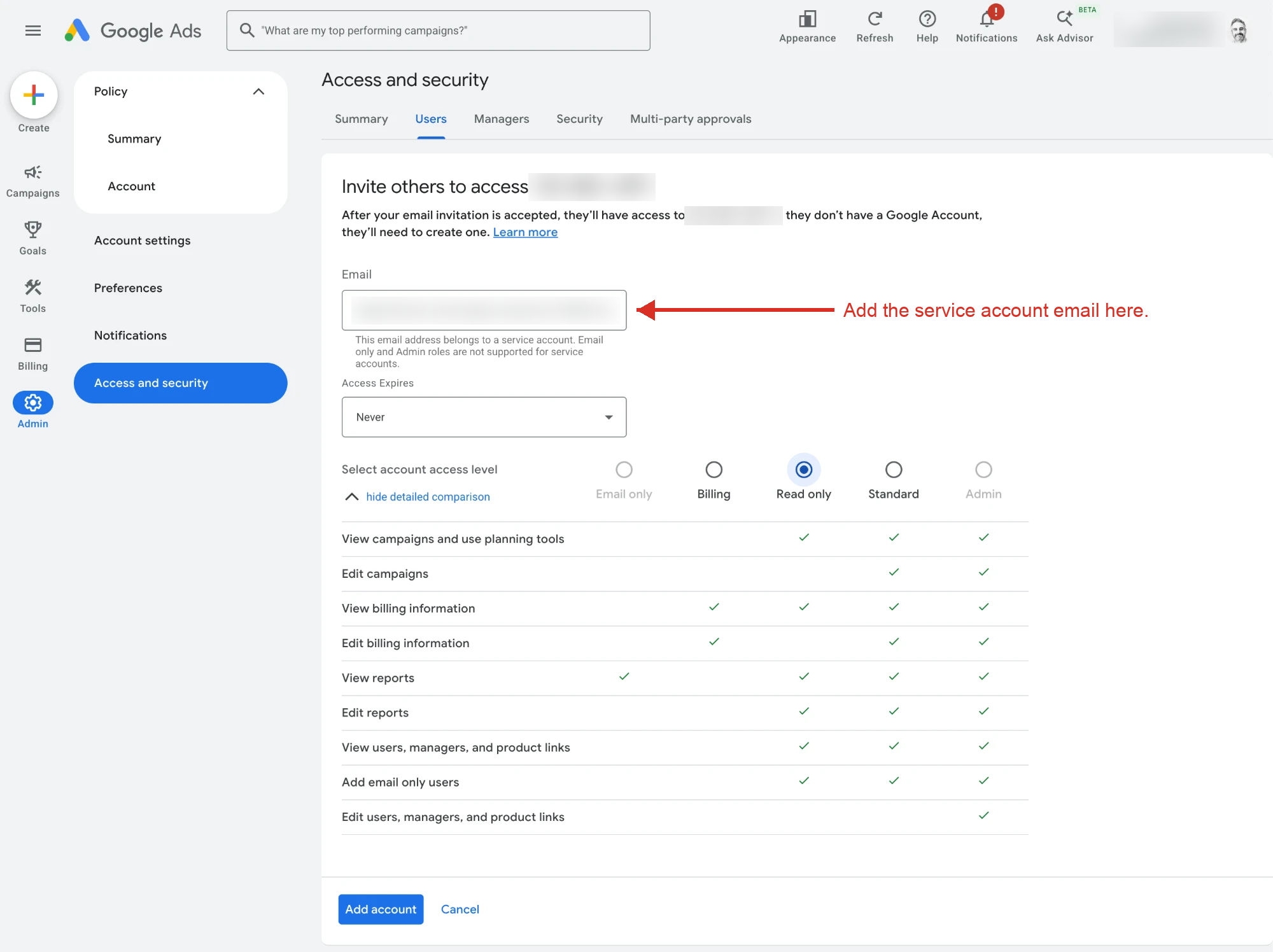
A service account is a user in Google Ads like any other. Sign in to Google Ads as an administrator of the account and:
- Go to Admin → Access and security.
- On the Users tab, click +.
- Enter the service account's email, choose an access level, and click Add account.
Read only is enough: Datachef only reads. Standard also works. Service accounts can't be given Email only access.
Do this either on the account that serves ads or on a manager (MCC) account above it:
| Where you add it | What to hand Datachef |
|---|---|
| On the account itself | Its customer ID. Leave the manager account ID blank. |
| On a manager account | The customer ID of the account to sync, plus the manager account's ID |
A manager account is the way to go when one service account should reach many accounts. Google allows up to 20 accounts per user email; beyond that, add the service account to a manager account that links them.
The customer ID is the 10-digit number shown under the account name in the top right of Google Ads, in the form 123-456-7890. For a manager account, it's in the top left, under the drop-down next to the account name. The account Datachef syncs must be one that serves ads, not a manager account.
4. Apply for Explorer access
A project that only has Test access can't read a real account. The connection test fails with CLOUD_PROJECT_NOT_APPROVED_FOR_PRODUCTION until the project is approved.
- Open the Google Ads API Overview page for the project.
- Check that the current access level shows Test, then expand Upgrade access level.
- Confirm the next level is Explorer and click Apply for access.
Google reviews Explorer applications automatically in most cases and often upgrades the project right after you submit. Explorer allows 2,880 operations a day on real accounts, which is plenty for Datachef: see quota below. Basic and Standard need brand verification of the Cloud project, and Standard also needs a manual review that takes about 10 business days. Apply for them only if the quota section says you need to.
Google notes that projects on the Google Cloud free trial, or whose billing account is suspended or disabled, have been refused with a message that the project doesn't meet the eligibility criteria. If that happens, upgrade the project to a paid tier or use another project, wait a few minutes, and apply again. Don't apply through the API Center page inside Google Ads; those applications aren't processed any more.
5. Hand the details to Datachef
Whoever connects it in Datachef needs:
- The service account key file, whole.
- The customer ID.
- The manager account ID, if the service account was added to a manager account.
The key is a credential, so don't email it. The safest route is for the person who downloaded it to paste it straight into Datachef's Connect Google Ads form and then delete the local copy. If someone else connects it, hand the file over through a password manager or a shared secret store, not chat or email. Datachef encrypts it when stored and never sends it back to a browser. See security.
Connection fields
| Field | Notes |
|---|---|
| Customer ID | The 10-digit ID of the account to sync. An account that serves ads, not a manager account. |
| Manager account ID | Optional. Only when access comes through a manager (MCC) account. Blank when the service account was added to the account itself. |
| Service account key | Paste the whole JSON key, braces included |
| Sync data from | The first day of the performance tables. Defaults to one year ago. |
| Days to let a day settle | Defaults to 3. See below. |
| API version | Leave the default the form fills in. Google retires each version about a year after it ships, and the default moves with it. |
Saving runs a connection test that checks the credentials end to end. It refuses a manager account as the customer ID there, instead of letting the first sync find out.
Tables
Google Ads has no tables of its own, just resources and a query language in which what a row means depends on what was selected. So the connector offers a fixed set of tables, each a query written into the connector, whose grain never changes. They're queried through the connection's name, so google_ads.campaign_performance for a connection named google_ads.
Reference tables hold one row per thing, as it's configured now. Full refresh only.
| Table | One row per |
|---|---|
customer | The account |
campaigns | Campaign |
ad_groups | Ad group |
ads | Ad |
keywords | Keyword, positive or negative |
Daily performance tables hold metrics over time. Incremental or full refresh.
| Table | One row per |
|---|---|
account_performance | Day, device |
campaign_performance | Day, device, campaign |
ad_group_performance | Day, device, ad group |
ad_performance | Day, ad |
keyword_performance | Day, keyword |
Every performance table carries impressions, clicks, cost_micros, conversions and conversions_value. Money is in micros, millionths of the account's currency, so spend is cost_micros / 1e6. Dates are in the account's own timezone. A row exists only where something was served, so a campaign that showed nothing on a day has no row, not a row of zeros.
Full refresh or incremental
Google revises a day after it ends. Invalid clicks are removed over the following days, and conversions are credited back to the day of the click for as long as your conversion window, 30 days unless you changed it. Datachef appends, so an incremental table can't go back and correct a day it has already read.
- Full refresh re-reads everything from Sync data from through today, so it's always exactly what Google says now. It's one query however long the range, so it costs little quota, and it's the right choice for most accounts. The price is transfer: every run moves the whole range again.
- Incremental reads each day once, Days to let a day settle after it closes, and never again. With the default of 3, the table for the 1st is read on the 5th, with an extra day for the timezone. Anything Google revises after that is missed, so raise the setting to your conversion window if conversions have to be exact.
Quota
Google counts queries against a daily limit on the Google Cloud project that owns the service account. A query is one operation however many rows it returns, and everything using that project shares the limit.
| Access level | Operations a day on real accounts |
|---|---|
| Test | None. Test accounts only. |
| Explorer | 2,880 |
| Basic | 15,000 |
| Standard | Unlimited |
Each reference table costs one operation per sync. A performance table costs one per sync as a full refresh, and one per 30 days of history on its first incremental run, then one a day once caught up. So all ten tables cost about 10 operations per sync once caught up, and hourly full refreshes of all ten come to 240 a day. Explorer covers that with room to spare.
When the limit is reached, Google says how long to wait. A wait of up to a minute is waited out. Anything longer fails the run with a message saying so, and the next run starts from the last completed window.
Something missing or wrong on this page? Tell us